How to Connect Wallbox EV Chargers with the Zerofy App
Wallbox chargers (Pulsar Plus, Pulsar Max, Pulsar Pro, Commander 2, Copper SB) connect via OCPP (Open Charge Point Protocol).
Preconditions
- Your Wallbox charger is online and connected to the internet (Wi-Fi or Ethernet).
- The charger is added to your account in the myWallbox app.
- Your charger supports OCPP 1.6J (all current Wallbox models do).
Bluetooth is only needed when commissioning a new charger (to set up its Wi-Fi). Once the charger is online and visible in your myWallbox account, the OCPP settings are sent over the internet — you don’t have to be next to the charger.
Connecting Your Wallbox with Zerofy
1. Get your connection details
Open Zerofy and add a new Wallbox charger. The app shows the Server and Charge point identity you need, each with a copy button.
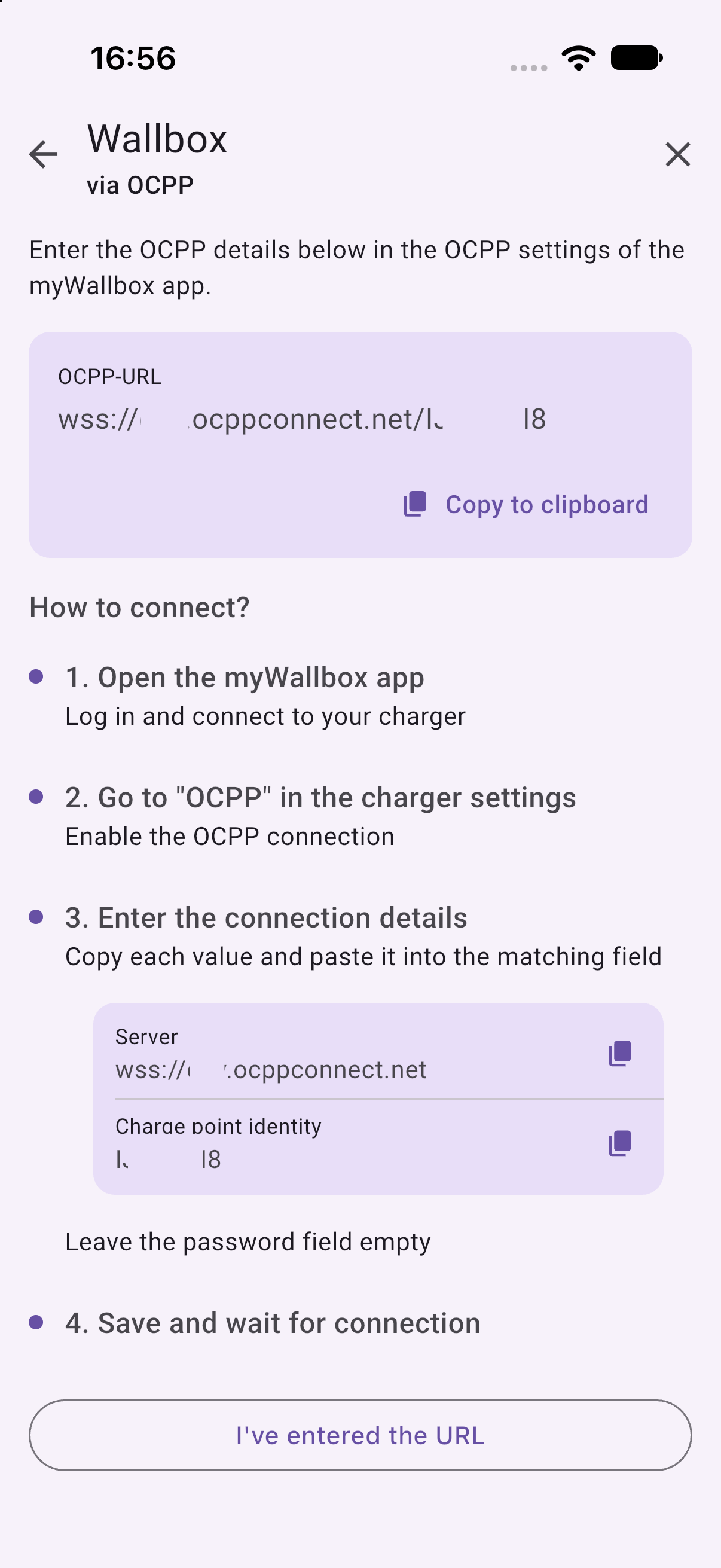
2. Open the OCPP settings in the myWallbox app
Open the myWallbox app, select your charger and tap the settings (cogwheel) icon. Scroll to External Management, select OCPP and turn the OCPP toggle on (“Allow third-party management”).
3. Enter the connection details
| myWallbox field | Value |
|---|---|
| OCPP provider | Other |
| Server | copy from Zerofy (wss://ocppconnect.net) |
| Charge point identity | copy from Zerofy |
| Password | leave empty |
| TLS certificate | not required, skip it |
Use the copy buttons in Zerofy for the Server and Charge point identity values so they match exactly — the charge point identity is case-sensitive.
4. Save
Accept the terms and conditions and tap Save. The charger reboots automatically (1–3 minutes) and then connects to Zerofy.
Features and Things to Know
Once your Wallbox is connected, you can:
- Control and schedule your EV charging.
- Monitor real-time and historical charging data.
- Start and stop charging sessions remotely.
- Set charging power levels.
- Leverage smart charging strategies through Zerofy, for example charge on excess solar with Autopilot (Solar Mode).
While OCPP is active, charging control moves from the myWallbox app to Zerofy. Firmware updates, restarting the charger and network settings stay in the myWallbox app.